My PDF is Missing Images! How to Fix Lazy Loading and Infinite Scroll
You found the perfect recipe or a long, detailed tutorial. You paste the URL, click "Convert," and open your PDF.
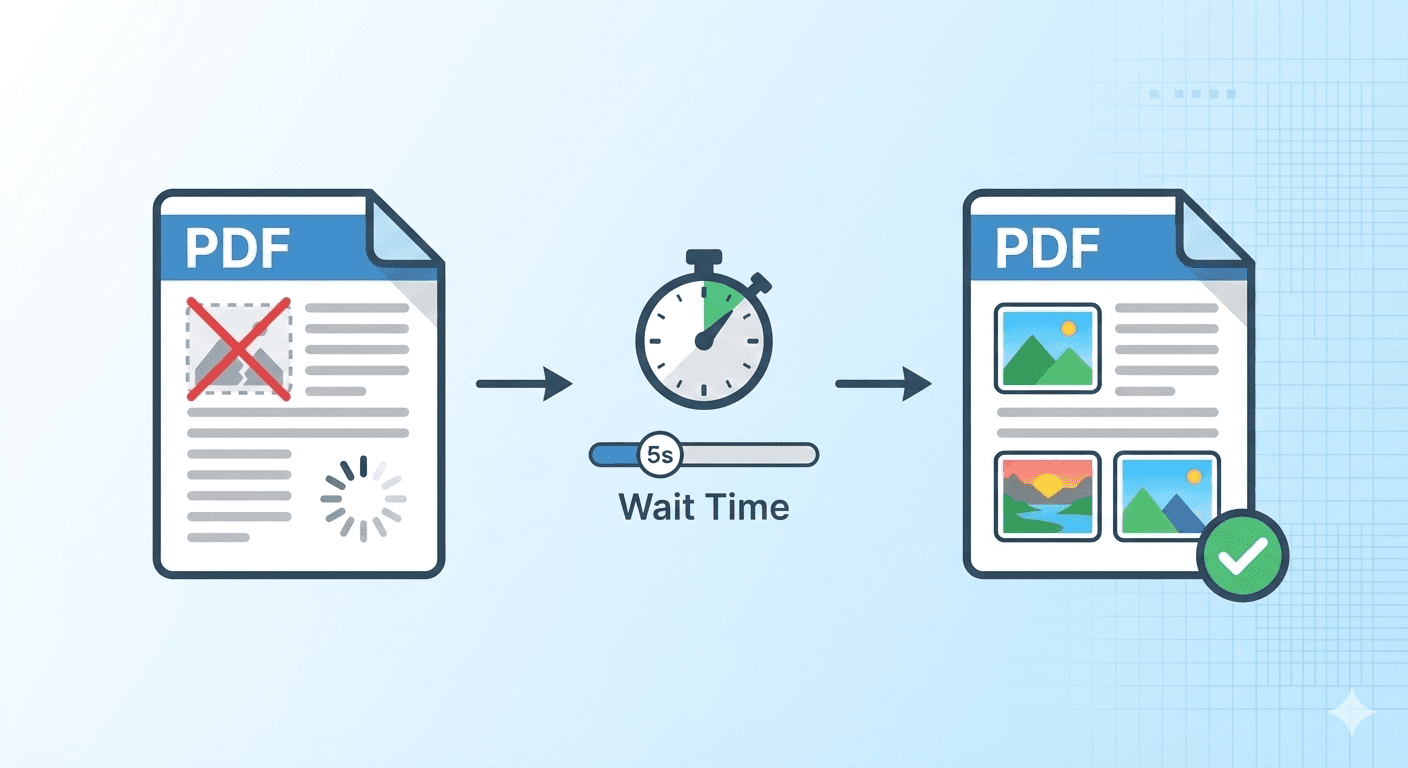
The text is there, but the images are gone. Instead, you see empty white boxes or "loading" spinners where the photos should be. Or worse, the PDF just cuts off halfway down the page.
Did the converter fail? Not exactly. The website outsmarted it.
Here is why this happens and the simple setting you need to change to fix it.
The Villain: "Lazy Loading"
To make websites faster, developers use a technique called Lazy Loading.
Instead of loading every single image the moment you open the page (which would take forever), the website only loads the images visible on your screen. As you scroll down, it quickly fetches the next batch.
The Problem: When a PDF converter visits the page, it captures everything instantly—often before the website has realized it needs to load those bottom images. The result is a PDF full of empty placeholders.
The Fix: Add a "Conversion Delay"
You need to tell the converter to slow down.
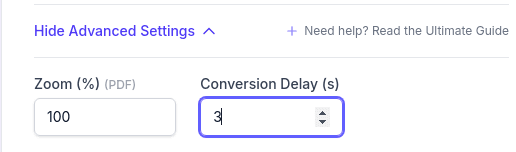
Our tool has a specific setting for this called Conversion Delay (s).
When you add a conversion delay (e.g., 3 or 5 seconds), you are telling our virtual browser: "Load the page, scroll down a bit, and then delay for X seconds before you take the picture."
This simple pause gives the website's "Lazy Loading" script enough time to wake up, fetch the missing images, and render them fully.
How to Do It
- Paste your URL.
- Click "Show Basic Options." then "Show Advanced Settings"
- Look for Conversion Delay (s) option.
- Set it to 3 or 5 seconds.
- Click Convert Now.
What About "Infinite Scroll"?
Some websites (like Twitter/X, Pinterest, or news feeds) never actually end. They just keep loading more content as you scroll.
If you try to convert these, you might only get the top 10 posts.
Increasing the Conversion Delay helps here, too. It gives the tool more time to trigger those "load more" events. However, keep in mind that you can't save an infinite page to a static PDF. For these sites, we recommend setting a conversion delay of 5-10 seconds to capture a good chunk of the recent content.
Summary
If your PDF looks "unfinished," simply give it more time.
- Missing Images? Try 3 seconds.
- Cut-off Content? Try 5 seconds.
- Complex Web App? Try 10 seconds.
Want to master every setting? This trick is just one part of our complete toolkit. Read The Ultimate Guide to Creating the Perfect Webpage PDF to learn how to handle layouts, ads, and more.