Gemini to PDF: How to Convert & Save Full Chats
It’s the nightmare scenario for anyone tasked with archiving Gemini chat history. You just finished a massive, breakthrough brainstorming session. The conversation is long, valuable, and full of data you need to save Gemini chat logs offline.
You hit "Print," select "Save as PDF," and breathe a sigh of relief.
But when you open the file, your heart sinks. The PDF is only one page long. The header is garbled, overlapping the text. And the 90% of the conversation that happened after the first scroll? Gone.
You aren't doing anything wrong. Modern web apps are built for screens, not paper. Here is why standard Gemini to PDF methods fail and how to fix it.
Why Converting Gemini to PDF Fails (The Lazy Loading Issue)
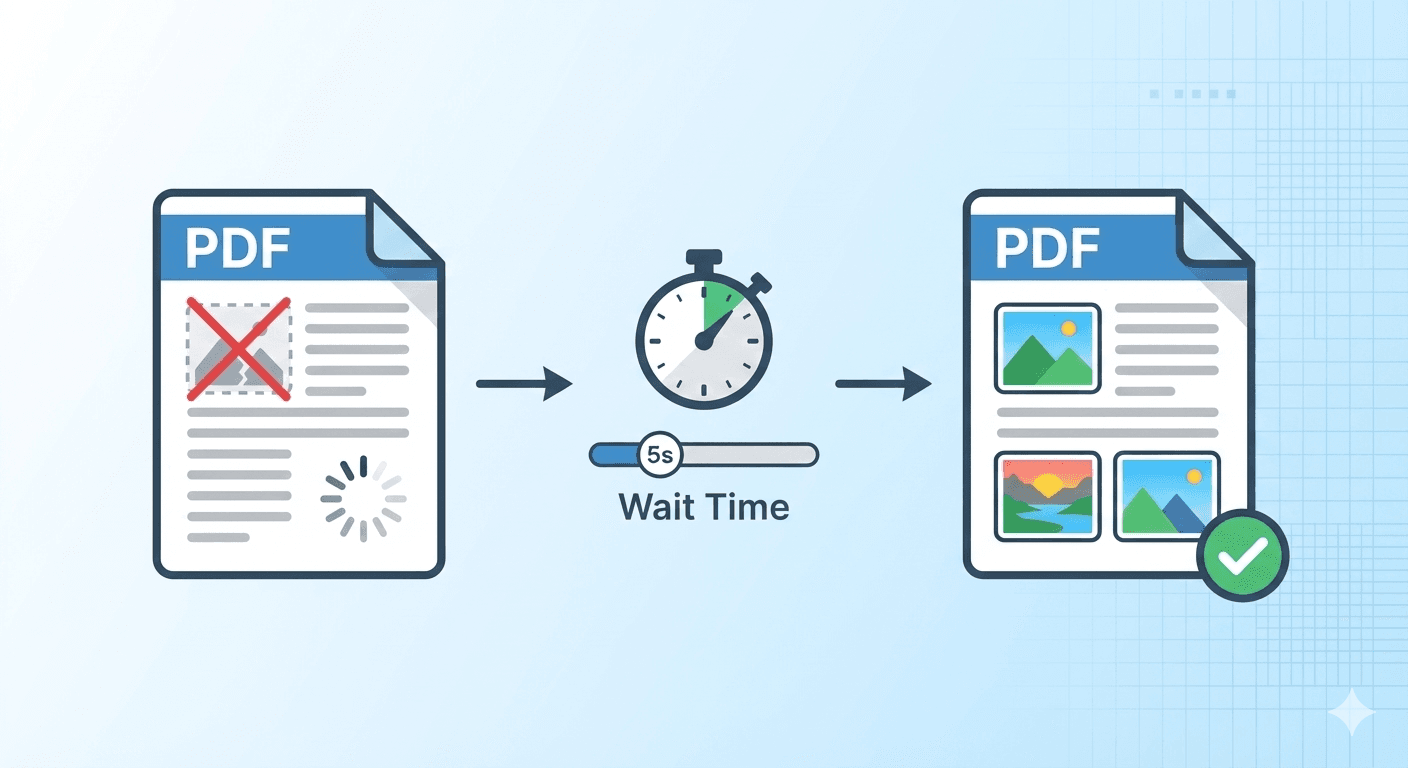
If you have ever scrolled down a social media feed and watched the loading spinner spin for a second before new content appears, you have experienced Lazy Loading (or virtual scrolling).
To keep the interface fast, Google doesn't load your entire conversation history at once. It only renders what is currently visible on your screen. As you scroll down, it dynamically loads the next chunk of text.
When you use a standard browser "Print" function to convert Gemini chat to PDF, the browser takes a snapshot of only what is currently loaded. It cannot "scroll" for you. It sees the first screen of text, prints it, and assumes the document is finished.
The result? A truncated file and a failed archive.
How to Fix Floating Headers and Overlapping Text
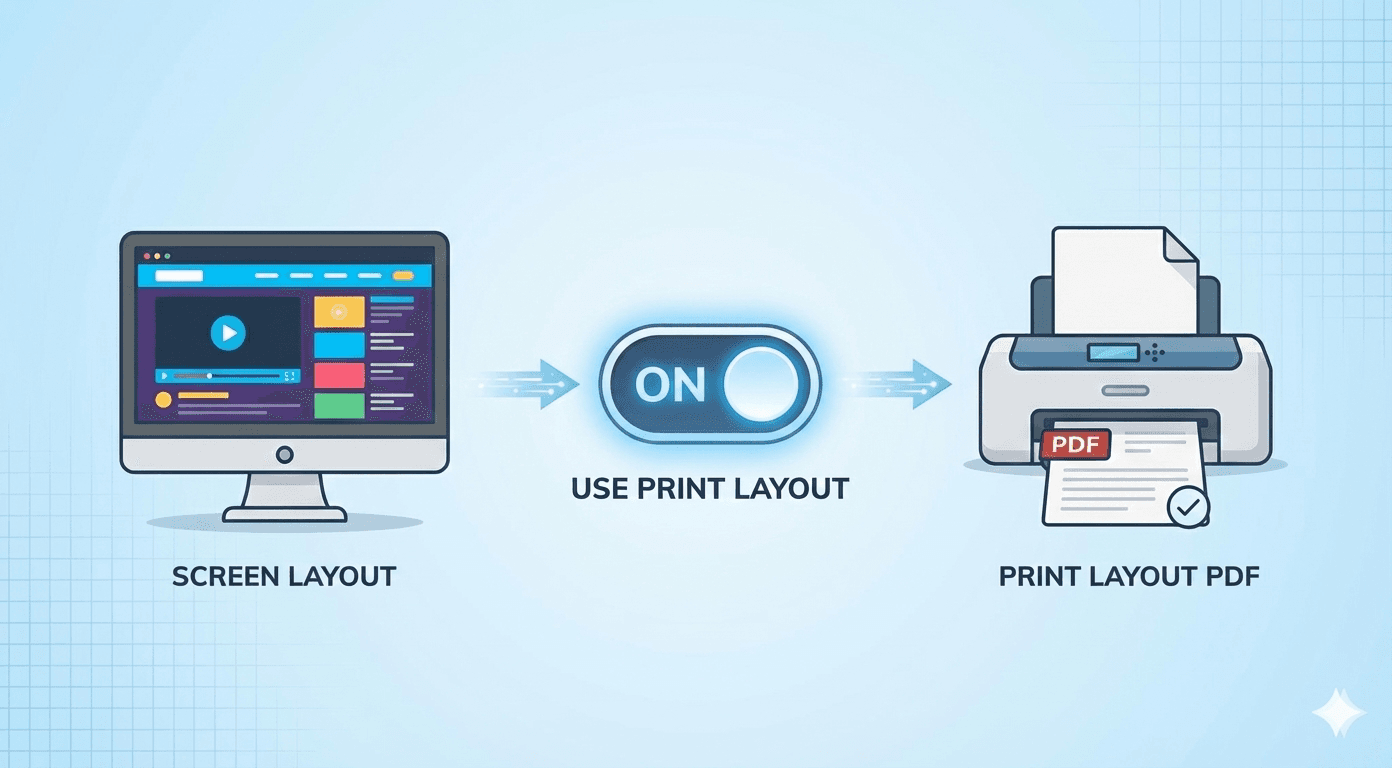
The second issue you likely noticed is the messy layout. On a screen, the Gemini header stays at the top of your window so you can always access settings (position: fixed).
On a PDF, this "sticky" behavior causes chaos. The printer tries to force that header onto every single page of your document. Often, it doesn't just sit at the top; it crashes right over your text, making paragraphs unreadable.
To get a clean Gemini to PDF conversion, you need a tool that mimics a real user scrolling through the page.
Step-by-Step: How to Convert Gemini Chat to PDF Properly
We built FreeWebToPDF.com specifically to handle complex, dynamic web applications. Unlike a standard browser print, our engine is designed for archiving Gemini chat data completely.
Here is how to capture your entire history:
- Copy your Gemini Shared Link: Make sure the chat is public or accessible via link.
- Paste into FreeWebToPDF: Enter the URL on our homepage.
- The Auto-Scroll Magic: You don't need to do anything special here. Our converter detects the page length and automatically scrolls through the content. This triggers the "Lazy Load," forcing Google to render the entire chat history from start to finish.
- Remove the Glitches: Before you click convert, open the Advanced Settings menu.
- Check "Fix Floating Content": This is the critical step for readability. Go to Conversion Settings and ensure "Fix Floating Content" is checked. This tells our engine to identify
position: fixedelements and unpin them, so they don't overlap your text. - Convert & Download: Click the button. You will get a multi-page, clean PDF containing every word of your session.
FAQ
Q: Will this work for ChatGPT or Claude as well? A: Yes. Most modern AI chat interfaces use similar "lazy loading" techniques. Our Auto-Scroll feature works across these platforms to help you save Gemini chat (and others) fully.
Q: Why is the "Fix Floating Content" not on by default? A: Sometimes, floating elements are useful—like a watermark or a persistent contact number on a business invoice. However, for reading long-form content like chat logs, we highly recommend turning it on.
Q: My PDF is still cutting off at the bottom. A: Ensure you are using the specific "Share" link provided by Gemini, rather than the URL from your private dashboard, as the public links render differently and are more printer-friendly.
Ready to safe-keep your ideas? Bookmark FreeWebToPDF.com and ensure your Gemini to PDF conversions are always complete.