A4 vs. A3 vs. Mobile: How to Get the Perfect Webpage PDF
Ever converted a webpage to PDF, only to find it's a mess? The text is "squished," the right side of the page is cut off, or the font is unreadably tiny.
This is the #1 problem with web-to-PDF conversion, and it's caused by a simple conflict: you're trying to fit a wide, responsive website screen onto a narrow, fixed piece of paper.
Don't worry—you are in complete control. Our tool gives you a few powerful options to solve this. Here’s how to pick the right one.
The Default: A4 Portrait
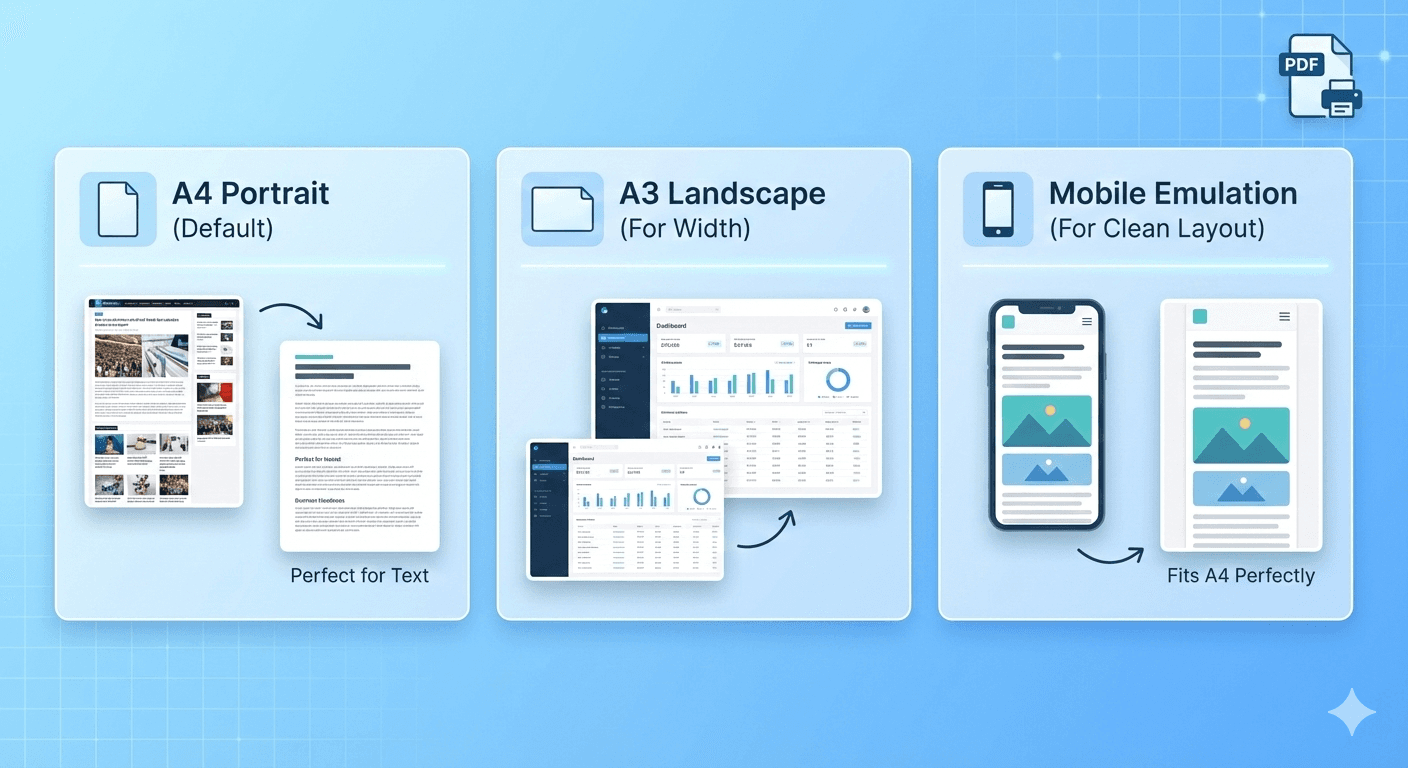
By default, our tool is set to A4 (Portrait). This is the global standard for documents. It's what your home printer uses and what everyone expects from a "PDF."
This setting is perfect for 90% of the web, especially text-heavy content like:
- News articles
- Blog posts
- Recipes
- Documentation
When it fails: You'll notice the page layout looks a little "squeezed," or the right-hand sidebar is cut off.
Solution 1: "Turn the Paper Sideways"
The Problem: Your page is just a little too wide. A sidebar or wide image is getting cut off.
The Fix: Change Orientation to Landscape.
This is the simplest fix. It keeps the same A4 paper but just turns it on its side. This simple change is often all you need to make a "squished" article suddenly look perfect, giving the content room to breathe.
- How: In the options, go to Orientation -> Landscape.

Solution 2: "Get a Bigger Piece of Paper"
The Problem: Your page is way too wide. It's a financial dashboard, a complex data table, or a giant in-browser diagram. Landscape mode isn't enough.
The Fix: Change Paper Size to A3.
An A3 page is literally two A4 pages side-by-side. It gives you a massive canvas to work with. For best results, you'll often want to use A3 and Landscape together. This can capture even the widest and most complex site layouts.
- How: In the options, go to Paper Size -> A3.

Solution 3: "Change the Website, Not the Paper"
The Problem: The desktop site is just a mess. It has popups, complex columns, or a weird layout that breaks when printed.
The Fix: Change the Viewport Emulation to Mobile.
This is the "secret weapon" and often the best solution.
Instead of making the paper wider, this option makes the website narrower. It tells the website, "Hello, I am an iPhone 15 Pro." The website then sends back its beautiful, clean, single-column mobile version.
This mobile layout will fit perfectly on the default A4 (Portrait) paper.
- How: In the options, go to Viewport Emulation -> iPhone 15 Pro. (And leave the paper size as A4 Portrait!)
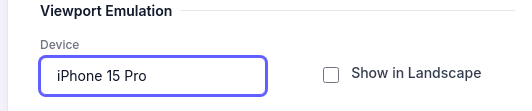
Tips: ⚠️ Due to limitations in browser printing mechanics and the support of the target website, using viewport emulation does not seem to affect the print results. As an alternative, you can try the PDF (Screenshot) mode. This mode captures the entire webpage as a PNG image and embeds it into a PDF file, ensuring that you capture the viewport you are using.
Solution 4: "Remove the Clutter" (The Most Important Option)
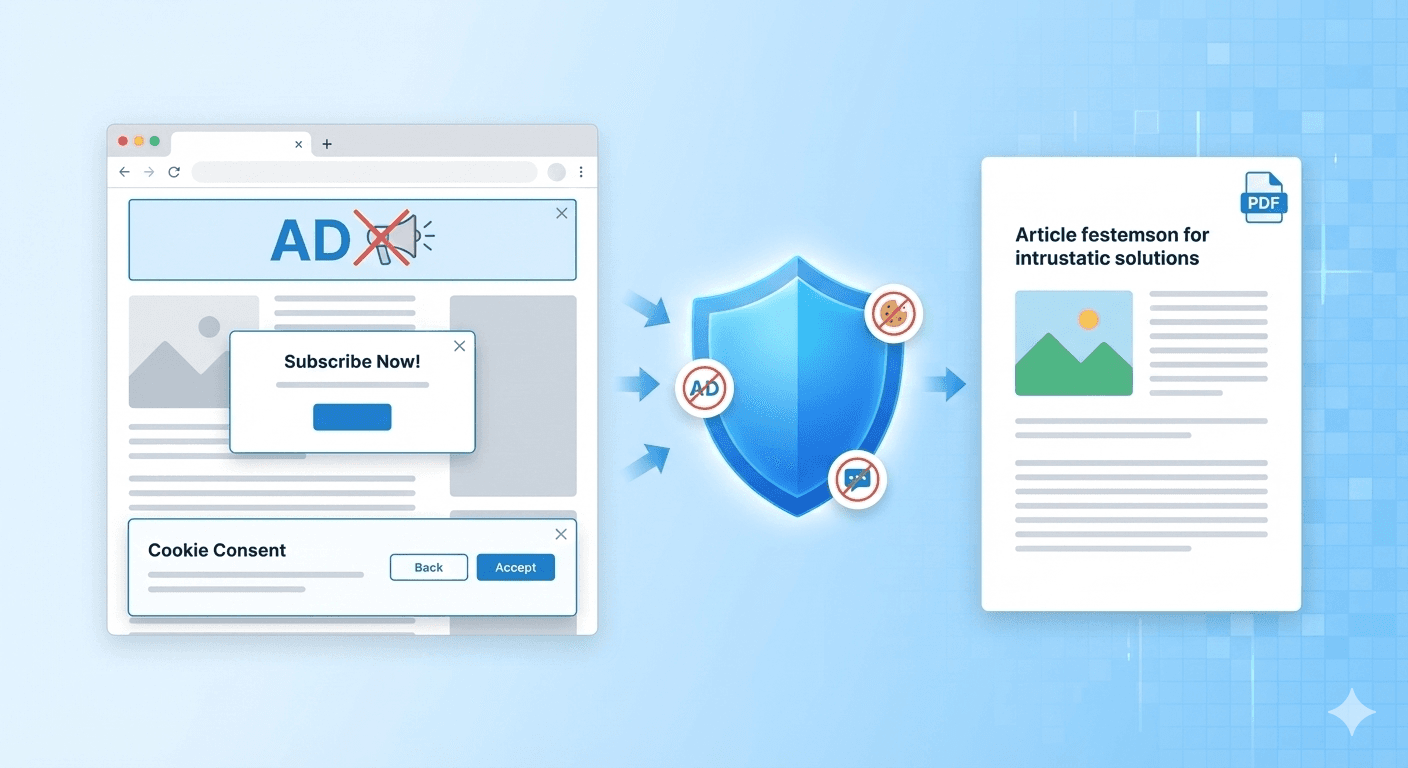
The Problem: The layout is fine, but the PDF is full of junk: ads, cookie banners, navigation bars, and colorful backgrounds. You just want the text.
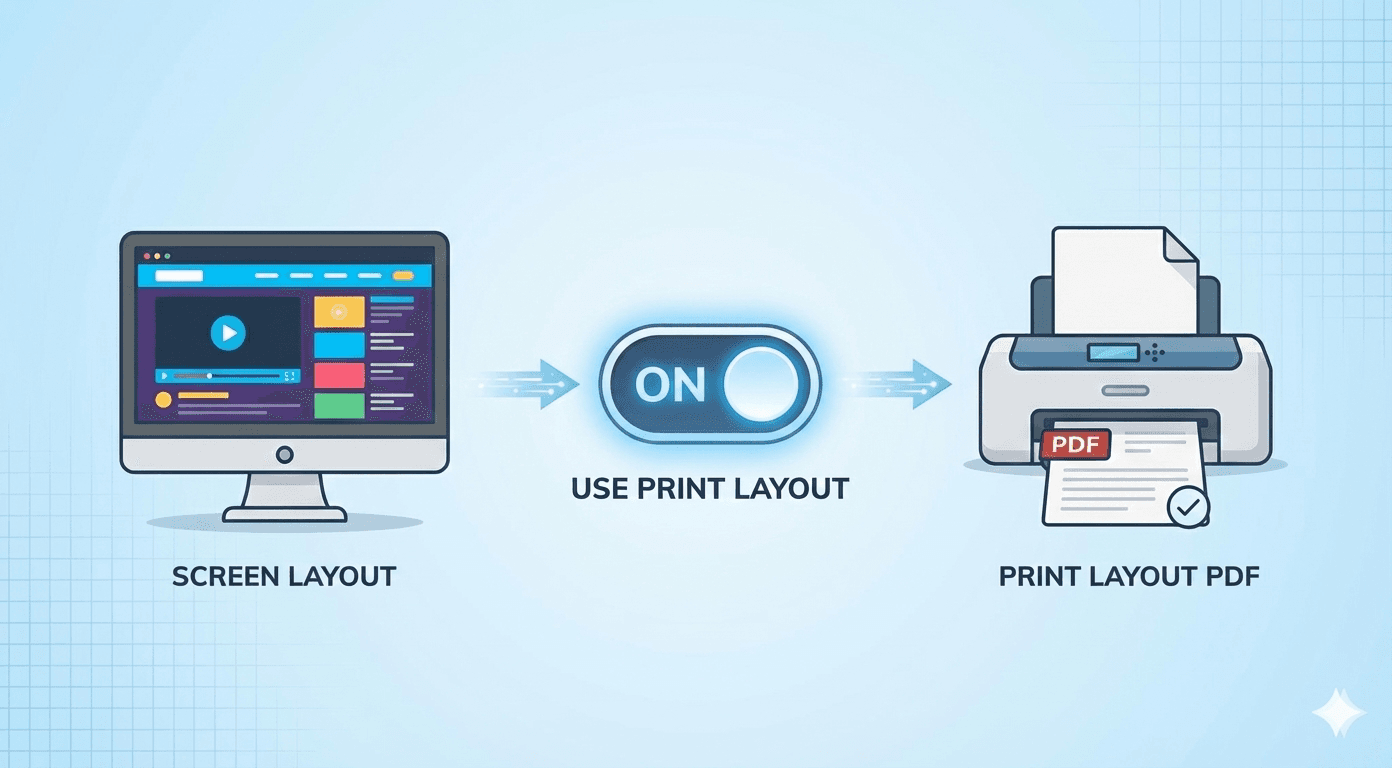
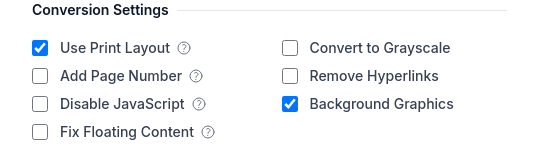
The Fix: Use the "Use Print Layout" checkbox.
Almost every website has two versions: a "screen" version (what you see) and a "print" version (what a printer sees). This checkbox lets you choose.
-
CHECKED (Default): This is "Article Mode." It uses the special, hidden "print" layout. This layout is designed to save ink, so it automatically removes ads, navigation, and backgrounds, giving you a clean, text-only document.
-
UNCHECKED: This is "Screenshot Mode." It captures the "screen" layout—a pixel-perfect copy of the site exactly as you see it in your browser, with all the colors, sidebars, and backgrounds included.
-
How: In the options, go to Advanced Settings -> Conversion Settings -> Use Print Layout. (Check the option for Use Print Layout to enable it.)
Summary: Your Perfect PDF Recipe
Use this guide to combine the settings for a perfect result every time.
| If Your Goal Is... | Your Best Settings Are... |
|---|---|
| A clean, text-only article | 1. Paper Size: A4 (Portrait) <br> 2. Use Print Layout: CHECKED (Default) |
| A pixel-perfect "screenshot" of the site | 1. Paper Size: A4 (Portrait) <br> 2. Use Print Layout: UNCHECKED |
| A wide dashboard or data table | 1. Paper Size: A3 (Landscape) <br> 2. Use Print Layout: UNCHECKED |
| A clean mobile version of the site | 1. Viewport: iPhone 15 Pro <br> 2. Paper Size: A4 (Portrait) <br> 3. Use Print Layout: UNCHECKED |
You're in the driver's seat. By combining paper size, orientation, viewport, and the "Use Print Layout" option, you have the power to create a perfect, readable PDF from any webpage.
Ready to try it? Go to our Free Webpage to PDF Converter and test these options on your favorite website.