How to Create a Clean, Ad-Free PDF from Any Article
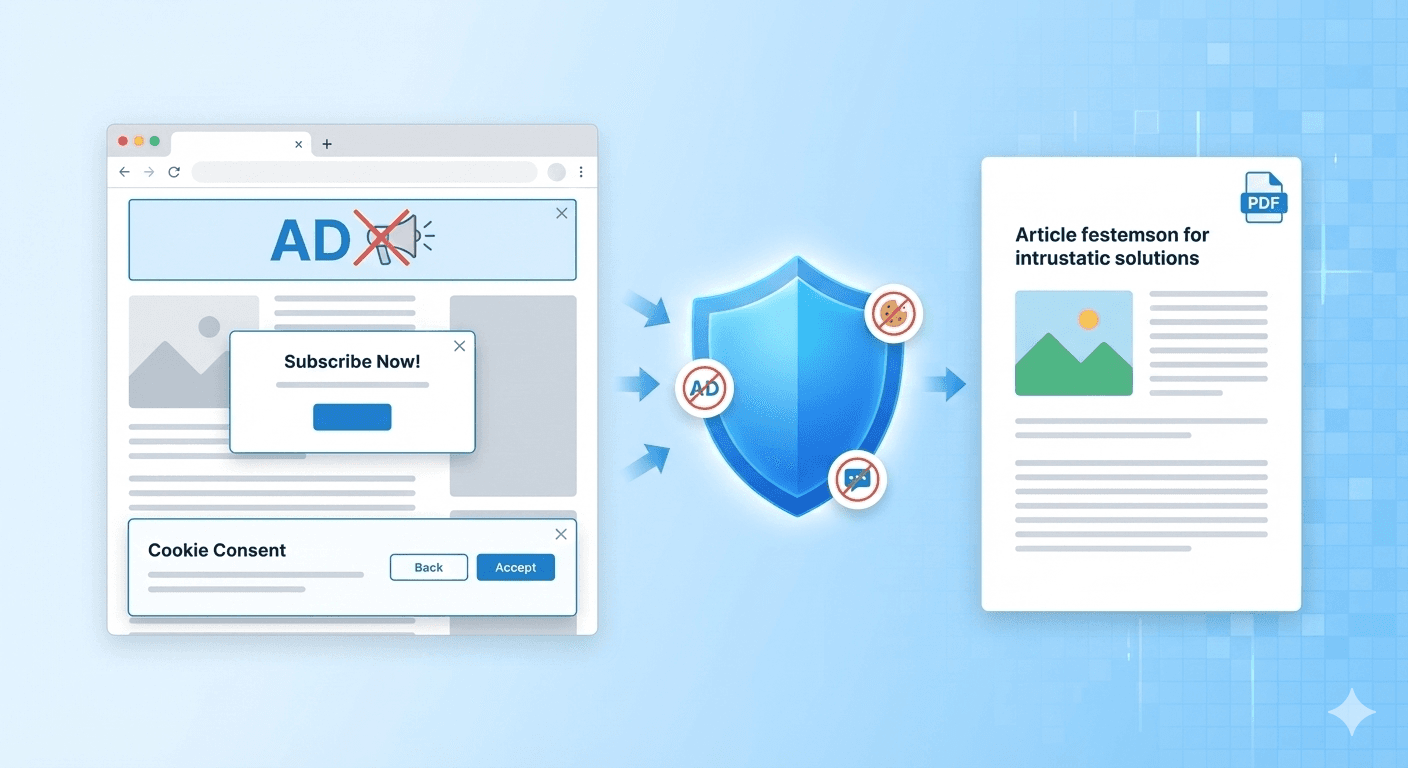
We've all been there. You find a great article, recipe, or guide that you want to save for later. You convert it to PDF, and the result is a disaster.
Instead of 3 pages of text, you get 15 pages of "Subscribe Now" popups, cookie consent banners, floating chat widgets, and massive sidebar ads. The actual content is buried.
The good news? You don't have to settle for messy PDFs. Our tool has built-in features designed specifically to strip away this clutter. Here is how to use them to create a perfect, clean document.
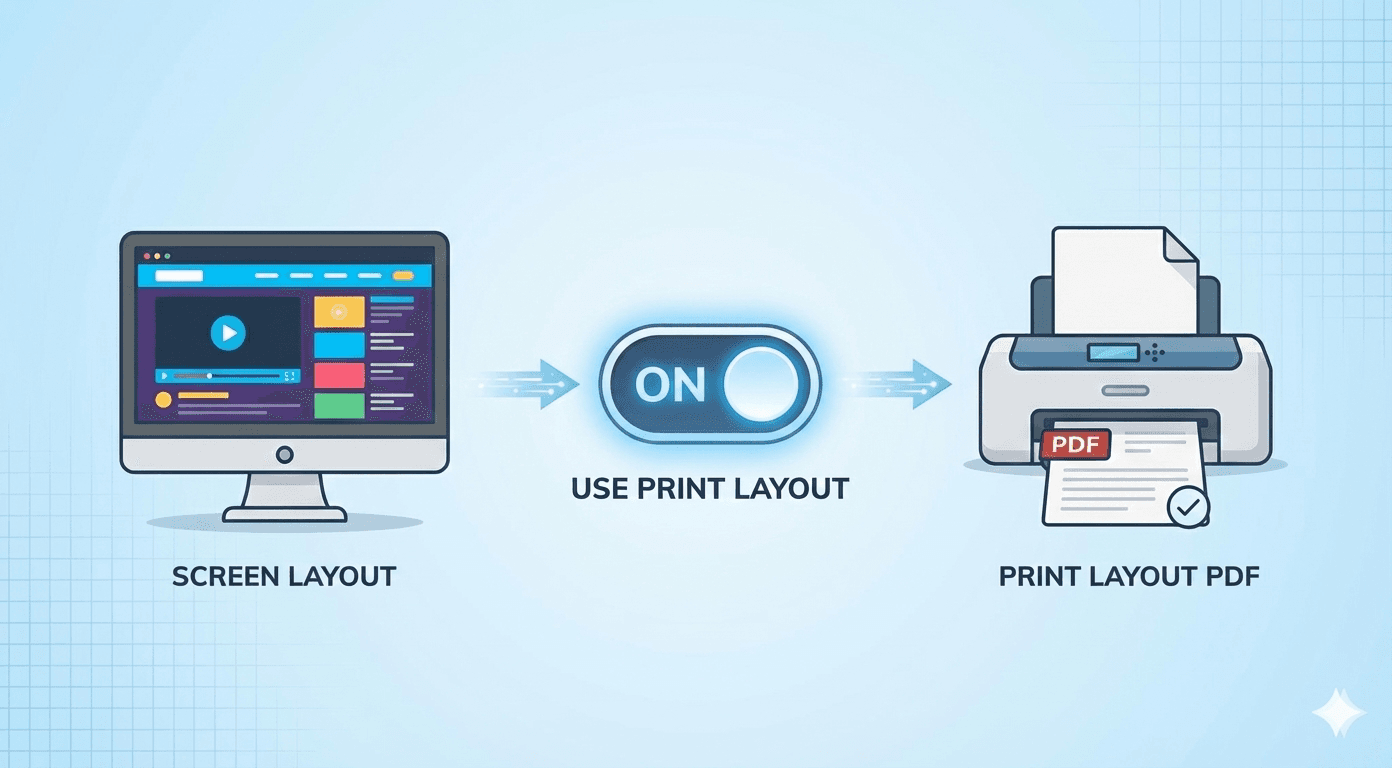
Step 1: The "Magic Switch" (Use Print Layout)
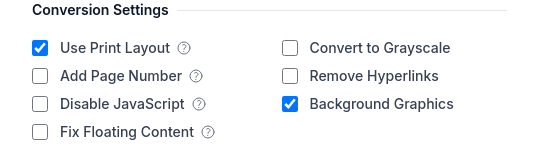
The first and most powerful tool is the "Use Print Layout" checkbox.
Most modern websites actually have two versions:
- The Screen Version: The colorful, interactive version you see in your browser.
- The Print Version: A hidden, simplified version code specifically for printers.
By default, our tool keeps the "Use Print Layout" box CHECKED.
This signals to the website that we want the printer-friendly version. Good web developers will use this to automatically hide navigation bars, background colors, and most ads.
Pro Tip: Always try this first. For 80% of news sites and blogs, this single setting is all you need.
Step 2: The Heavy Artillery (Content Blocking)
Sometimes, a website doesn't have a good "Print Version," or it forces ads to appear even when printing. That's when you need to open the "Content Blocking" section.
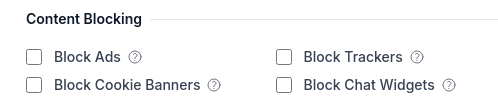
Here, you will find four powerful checkboxes:
1. Block Ads
This connects our converter to a massive list of known ad networks. It prevents ad images and scripts from even loading.
- Use this when: You see large blank spaces or banner images breaking up your text.
2. Block Cookie Banners
Nothing ruins a PDF like a giant "WE VALUE YOUR PRIVACY" banner covering the bottom half of every page. This option attempts to identify and hide those GDPR and cookie consent forms before the capture is taken.
- Use this when: A sticky footer or popup is blocking the text.
3. Block Trackers
This feature identifies and blocks tracking scripts that monitor user behavior across websites. By preventing these scripts from loading, you ensure that your conversions are clean and private, free from unwanted surveillance.
- Use this when: You want to keep your captured content free from tracking tools that could interfere with formatting or privacy.
4. Block Chat Widgets
Customer support chat bubbles are great for buying shoes, but terrible for printing. They often float over the text in the bottom-right corner. This option targets and removes them.
- Use this when: A "Chat with us!" icon is covering your document.
Step 3: Putting It All Together
For the ultimate clean PDF, here is the "Perfect Reading" recipe:
- Paste your URL.
- Ensure "Use Print Layout" is CHECKED.
- Scroll down to Content Blocking and check "Block Ads" and "Block Cookie Banners."
- Click Convert Now.
The result? A professional, clean, text-focused document that looks like it was typed up just for you. No distractions, just content.
Ready to clean up your reading list? Go to FreeWebToPDF.com and try these settings on your next article.