How to Save the Mobile Version of a Website to PDF
Have you ever tried to convert a webpage to PDF, only to find the text is tiny? Or maybe the page had three different columns, and they all got squashed together in a mess?
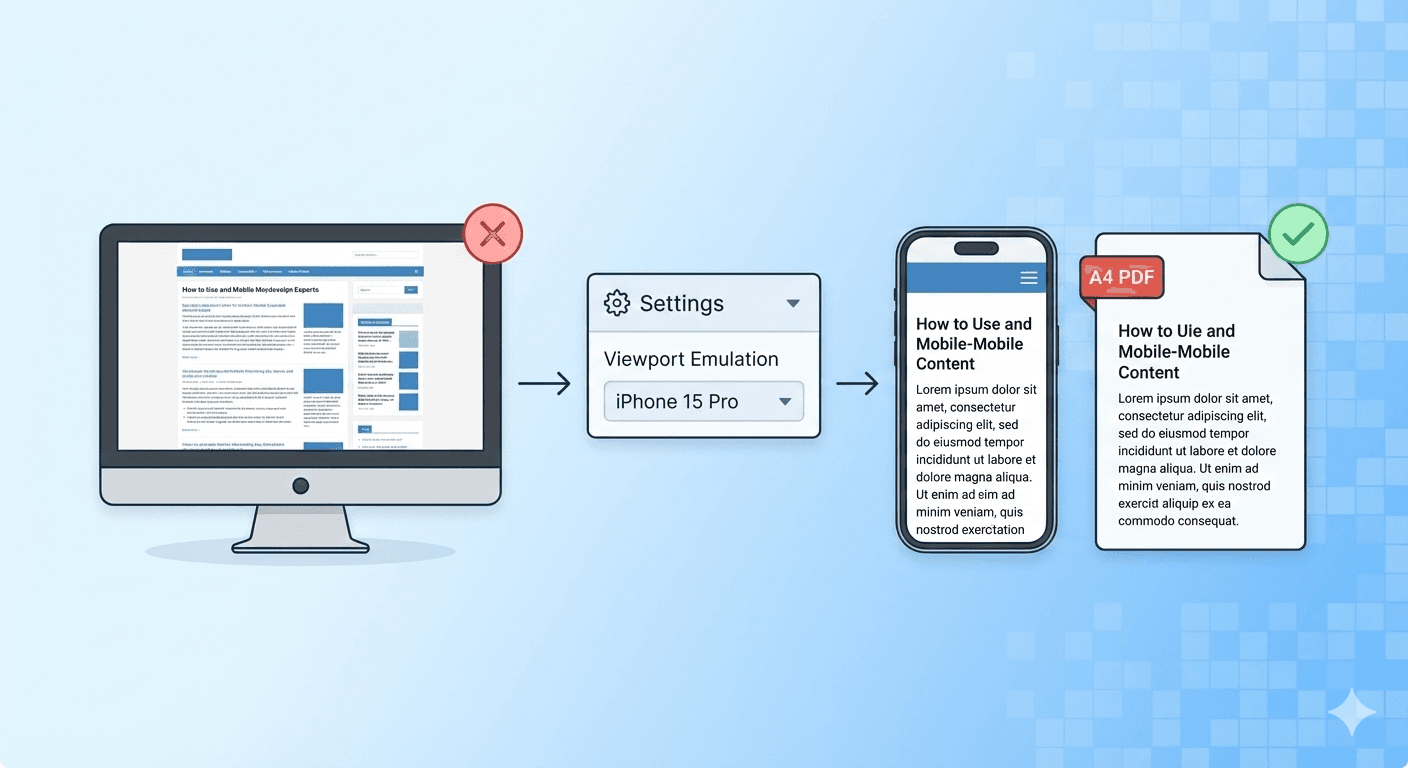
This happens because you are trying to print a Desktop Website. Desktop sites are wide, complex, and designed for big monitors. They simply don't fit well on a narrow piece of paper.
But there is a solution: Capture the Mobile Site instead.
Mobile websites are designed for narrow, vertical screens. They use large text, single-column layouts, and simple navigation.
Guess what else is narrow and vertical? A4 Paper.
Here is how to force our converter to capture the mobile version of any website for a perfect, readable PDF.
The "Viewport Emulation" Trick
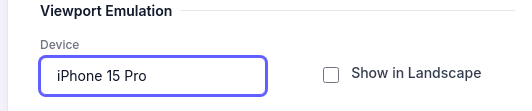
You don't need to use your phone to do this. You can do it right from your desktop browser using our Viewport Emulation feature.
This feature tells our conversion engine to "pretend" it is a specific smartphone (like an iPhone 15 or Pixel 8). When the website sees this, it automatically delivers the clean mobile layout.
Step-by-Step Guide
- Paste your URL into the converter.
- Click "Show Basic Options" to reveal the settings.
- Locate the "Viewport Emulation" section.
- Click the dropdown menu (it usually says "Desktop (1920x1080)").
- Select a mobile device, such as iPhone 15 Pro or Samsung Galaxy S23.
- Important: Leave the "Paper Size" as A4 and Orientation as Portrait.
- Click Convert Now.
Tips: ⚠️ Due to limitations in browser printing mechanics and the support of the target website, using viewport emulation does not seem to affect the print results. As an alternative, you can try the PDF (Screenshot) mode. This mode captures the entire webpage as a PNG image and embeds it into a PDF file, ensuring that you capture the viewport you are using.
Why This Is Better Than "Desktop Mode"
When you switch to a mobile viewport, three magical things happen:
- Text Size Increases: Mobile sites use larger font sizes relative to the screen width. On a PDF, this means you can actually read the text without squinting.
- Single Column Layout: The confusing sidebars and multi-column grids disappear. Everything is stacked in one clean line, reading from top to bottom.
- No "Cut Off" Content: Because the mobile site is designed to never be wider than the screen, you won't have issues with content running off the edge of the page.
When Should You Use This?
We recommend the "Mobile Viewport" trick for:
- Recipes: They often look much cleaner on mobile.
- News Articles: It removes the sidebars and focuses on the story.
- Social Media Threads: Twitter/X and LinkedIn threads look much more natural in their mobile view.
Want to learn more about layout tricks? This is just one way to fix a broken PDF. Check out The Ultimate Guide to Creating the Perfect Webpage PDF for more expert tips on A4 vs A3, orientation, and more.