How to Convert Webpages from Different Countries (Geolocation & Proxies)
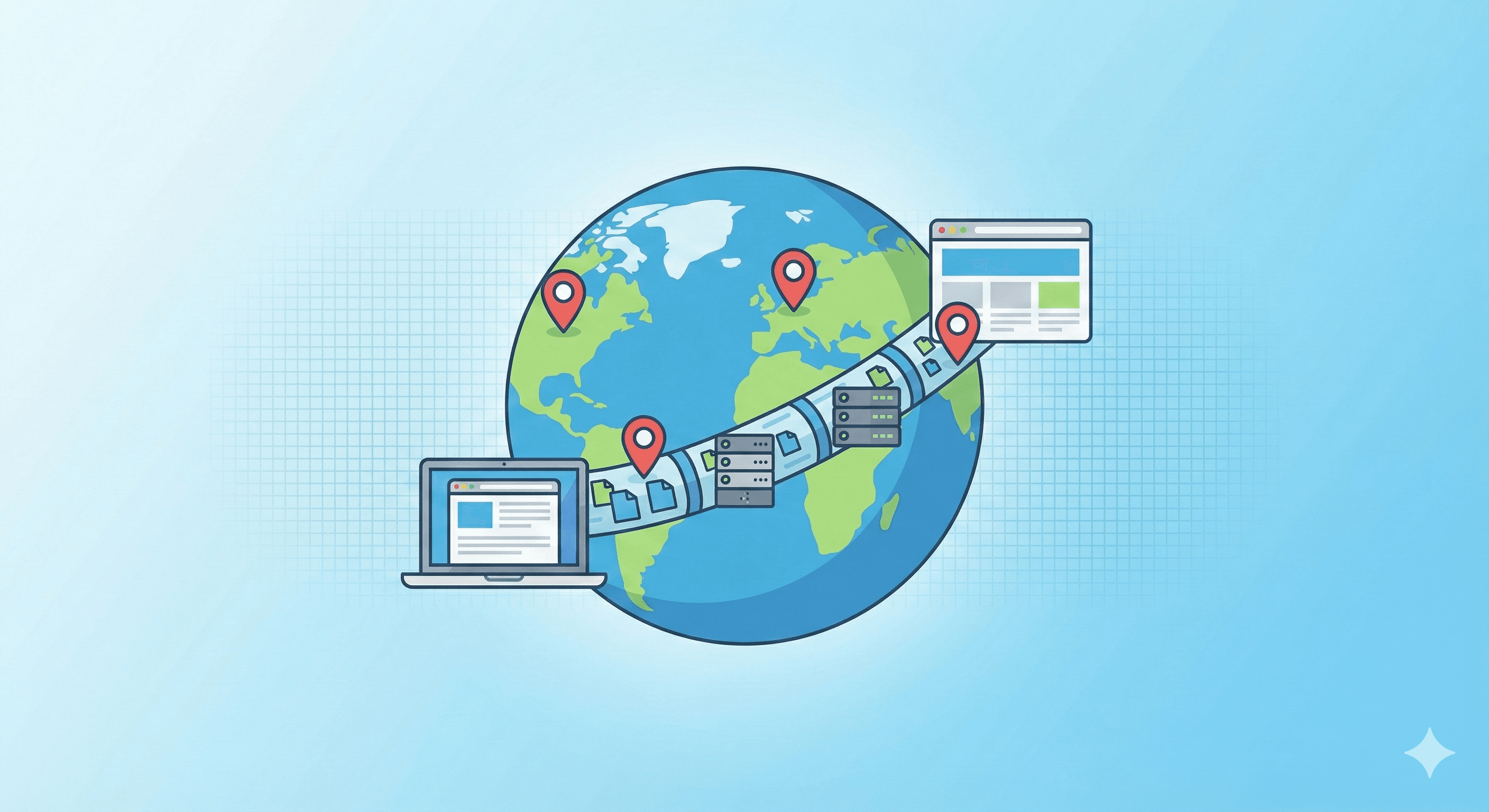
The internet is global, but websites often change depending on where you are visiting from.
If you visit a travel site from the US, you see prices in Dollars. Visit the same site from Paris, and you see Euros. Some news sites or video platforms even block access entirely if you aren't in a specific country.
So, how do you save a PDF of a webpage as it appears in London, Tokyo, or Rio de Janeiro, without actually hopping on a plane?
Our tool has built-in Location Emulation features to handle exactly this. Here is how to travel the virtual world.
Method 1: The "Virtual GPS" (Geolocation Emulation)
Many modern websites use the browser's "Location Services" to decide what to show you. They ask the browser, "Where are we?" and the browser sends back coordinates.
Our tool allows you to fake these coordinates.
- Paste the URL you want to convert.
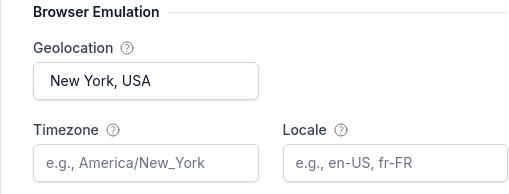
- Click "Show Basic Options" then "Show Advanced Settings" and open the "Browser Emulation" section.
- Find the "Geolocation" dropdown.
- Select a major city (e.g., Paris, France or Tokyo, Japan).
- Click Convert Now.
Best for: Local news sites, weather reports, and store locators that ask "Use my current location."
Method 2: The "Secret Tunnel" (HTTP Proxy)
Sometimes, "Virtual GPS" isn't enough. Some websites check your IP Address—your digital street address. If your IP says you are in the US, they won't show you UK content, no matter what your GPS says.
To fix this, you need an HTTP Proxy. This routes our converter's traffic through a server in the target country.
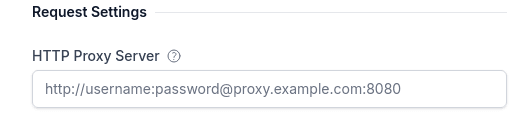
- Obtain a proxy URL (e.g., from a proxy provider like Bright Data or similar). It usually looks like
http://user:pass@ip:port. - In our tool, scroll down to "Reqeust Settings"
- Paste your proxy URL into the "HTTP Proxy Server" field.
- Click Convert Now.
Best for: Region-locked content (e.g., "This video is not available in your country") or rigorous price verification.
Bonus: Timezones and Languages
If you are emulating a user in Germany, don't forget to look the part!
In the "Browser Emulation" section, you can also set:
- Locale: Set this to
de-DE(German) to ensure the website loads text in the correct language. - Timezone: Set this to
Europe/Berlinso that timestamps on the page match the local time.
Summary
You don't need a VPN to capture international web content. With the right combination of Geolocation, Proxy, and Locale settings, you can generate a PDF of any website, from any perspective, instantly.
Want to become a conversion expert? From fixing layouts to bypassing logins, learn every trick in the book in The Ultimate Guide to Creating the Perfect Webpage PDF.