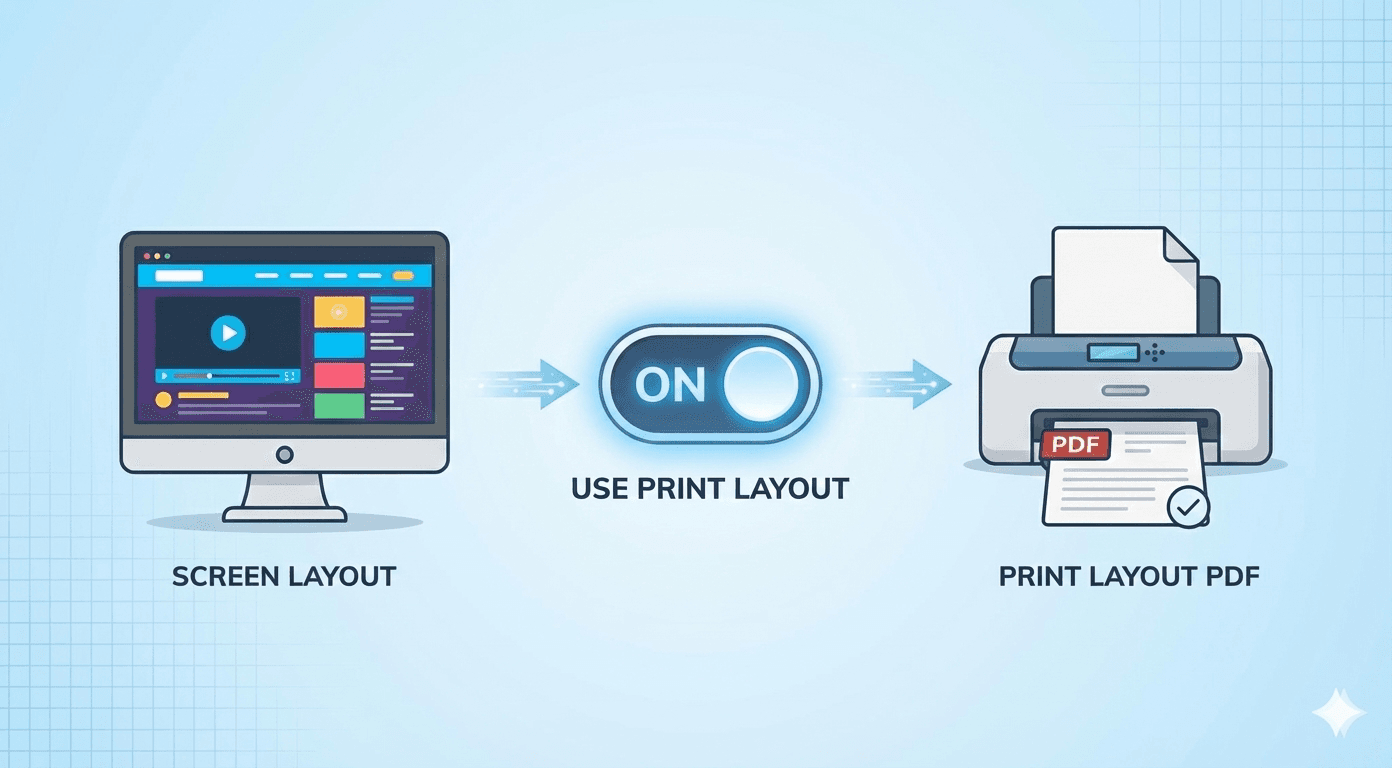
How to Add Page Numbers, Dates, and Titles to Your PDF
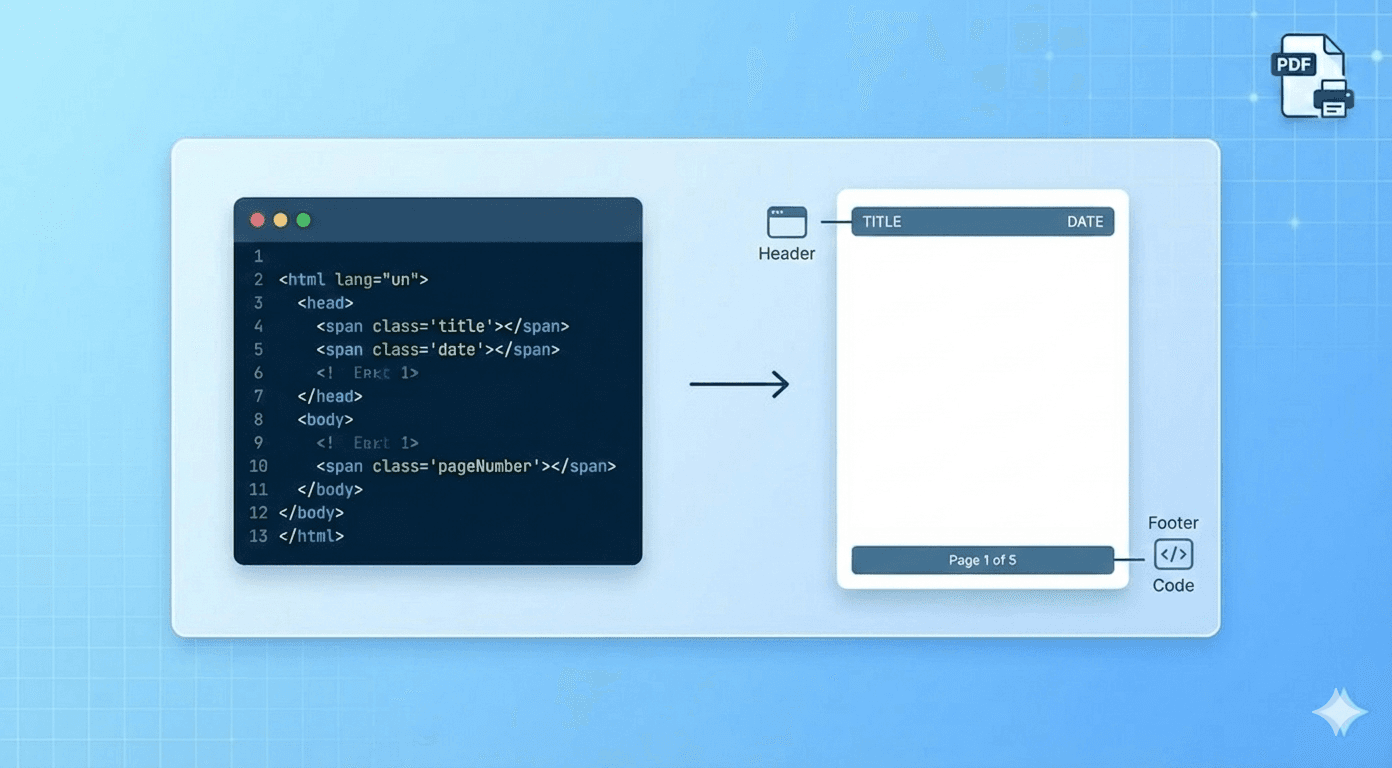
If you are saving a recipe, a simple screenshot is fine.
But if you are saving a webpage for legal evidence, academic research, or business records, a simple picture isn't enough. You need context. You need to know exactly when the page was saved, where it came from, and the page numbers for easy reference.
Our tool has a professional "Header & Footer" engine built right in. It allows you to inject this information automatically onto every page of your PDF.
Here is how to use it, including some copy-and-paste templates you can use right now.
How It Works
In the "Advanced Settings" section of our tool, you will find two text boxes:
- Header HTML (Appears at the very top of every page)
- Footer HTML (Appears at the very bottom of every page)
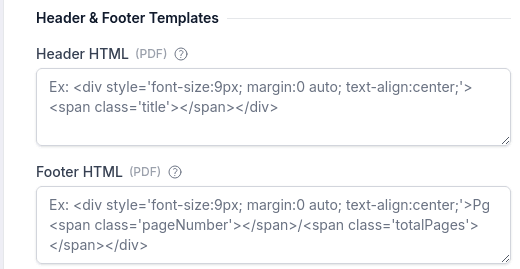
You can write standard HTML in here, but the real magic comes from using our Special CSS Classes. If you use these specific class names, our converter will automatically fill them with the correct data:
<span class='date'></span>→ Inserts the current print date.<span class='title'></span>→ Inserts the webpage title.<span class='url'></span>→ Inserts the source URL.<span class='pageNumber'></span>→ Inserts the current page number.<span class='totalPages'></span>→ Inserts the total number of pages.
3 Copy-and-Paste Templates
We have written these using "bulletproof" raw CSS (style="...") so they work perfectly in the PDF engine without needing external stylesheets.
1. The "Simple Page Number" (Footer)
This is the classic. It puts a small, centered page number at the bottom of every page.
Paste this into "Footer HTML":
<div style="font-size: 10px; text-align: center; width: 100%; padding-top: 5px;">
  Page <span class="pageNumber"></span> of <span class="totalPages"></span>
</div>
2. The "Archival" Footer (Legal/Research)
Perfect for capturing evidence. It lists the source URL on the left and the date it was saved on the right.
Paste this into "Footer HTML":
<div style="font-size: 8px; width: 100%; border-top: 1px solid #ccc; padding-top: 5px;">
  <table style="width: 100%; border-collapse: collapse;">
    <tr>
      <td style="width: 70%; vertical-align: top;">Source: <span class="url"></span></td>
      <td style="text-align: right; vertical-align: top;">Saved: <span class="date"></span></td>
    </tr>
  </table>
</div>
3. The "Professional Report" Header
Makes your web capture look like an official document. It puts the Title in bold on the left and the Date on the right.
Paste this into "Header HTML":
<div style="font-size: 10px; width: 100%; margin-bottom: 10px; overflow: hidden;">
   <table style="width: 100%; border-collapse: collapse;">
    <tr>
      <td style="width: 70%; vertical-align: top;"><span class="title"></span></td>
      <td style="text-align: right; vertical-align: top;"><span class="date"></span></td>
    </tr>
  </table>
</div>
Important Tips
- ⚠️ You MUST Set Margins: Headers and Footers print inside the page margins. If your margins are set to "0", your header will be invisible! You must set Top and Bottom margins to at least
0.4in(or10mm) for these templates to show up. - Font Size: The PDF engine treats font sizes differently than a screen. We recommend using
8pxto10px. Anything smaller might disappear.
Ready to level up? Mastering headers is just one step. For more tips on creating professional documents, check out The Ultimate Guide to Creating the Perfect Webpage PDF.