The Ultimate Guide to Creating the Perfect Webpage PDF
Converting a webpage to PDF should be simple. You press a button, and you get a document.
But in reality, the web is messy. Websites are dynamic, interactive, and built for screens of all sizes. Paper is static, fixed, and unforgiving.
When you try to force one onto the other, things break. Text gets cut off, images disappear, ads cover the content, and layouts crumble.
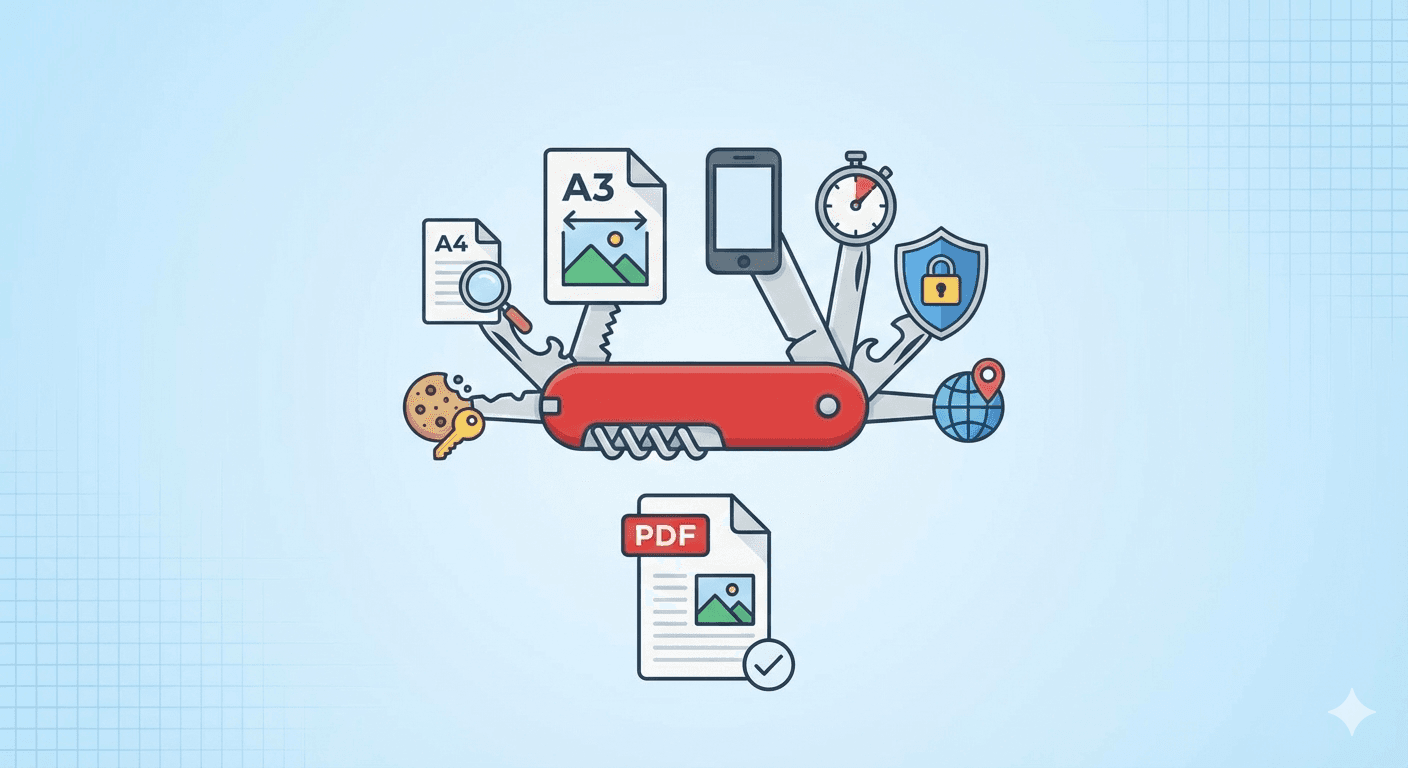
At FreeWebToPDF.com, we built our engine to handle these complexities. This guide is your complete handbook. Whether you are a student saving research, a lawyer archiving evidence, or just someone trying to print a recipe, this guide solves the 7 most common problems with web-to-PDF conversion.
Problem 1: The Page is "Squished" or Cut Off
The Symptom: The content looks like a thin column in the middle of the page, or worse, the right side of a data table or chart is sliced off.
The Cause: A conflict between the website's width and the paper's width.
The Solutions: You need to adjust your "Canvas." Most PDF tools default to A4 Portrait, which is often too narrow for modern desktop sites.
- Go Landscape: Simply switching the Orientation to Landscape gives you 40% more width. This fixes most "squished" layouts instantly.
- Upsize to A3: If Landscape isn't enough (for big dashboards or Excel-like tables), change the Paper Size to A3. This is effectively double the size of A4.
- The "Mobile" Trick: This is our favorite secret weapon. Instead of making the paper wider, make the website narrower! Use our Viewport Emulation to select "iPhone 15." The website will switch to its clean, single-column mobile view, which fits perfectly on A4 paper. ()
- "PDF (Screenshot) Mode": Given the limitations of browser printing mechanics and the support of the target website, viewport emulation in PDF mode may not influence the print results. As a solution, consider using the PDF (Screenshot) mode. This mode captures the entire webpage as a PNG image and embeds it in a PDF file, ensuring that the viewport you are using is accurately captured.
Deep Dive: Learn exactly when to use each paper size in our guide: A4 vs. A3 vs. Mobile: How to Get the Perfect Webpage PDF
Problem 2: The PDF is Full of Ads, Popups, and Clutter
The Symptom: You want to save a 3-page article, but you get a 15-page PDF filled with sidebar ads, "Subscribe" modals, and cookie consent banners.
The Cause: The converter is capturing elements meant for "engagement," not reading.
The Solutions:
- Check "Use Print Layout": Ensure this box is checked. It triggers the website's internal "printer-friendly" mode (
@media print), which often hides menus and ads automatically. - Enable Content Blocking: If the site ignores the print layout, use our Content Blocking checkboxes.
- Block Ads: Stops ad networks from loading images.
- Block Cookie Banners: Hides GDPR/Privacy popups.
- Block Trackers: Stop loading tracker scripts.
- Block Chat Widgets: Removes those floating "Chat with Support" bubbles.
Deep Dive: See the difference these settings make: How to Create a Clean, Ad-Free PDF from Any Article
Problem 3: The PDF Looks "Boring" (Missing Colors/Backgrounds)
The Symptom: The website is dark mode with cool graphics, but the PDF is a plain white document with black text.
The Cause: The "Print Layout" is doing its job too well. It removes background graphics to save ink.
The Solution: If you want a "Screenshot Style" PDF that looks exactly like your screen:
- Uncheck "Use Print Layout."
- Ensure "Background Graphics" is Checked.
This forces the browser to render the full visual design (@media screen) onto the PDF.
Deep Dive: Understand the technical difference: What is "Use Print Layout"? The Secret to Better PDFs
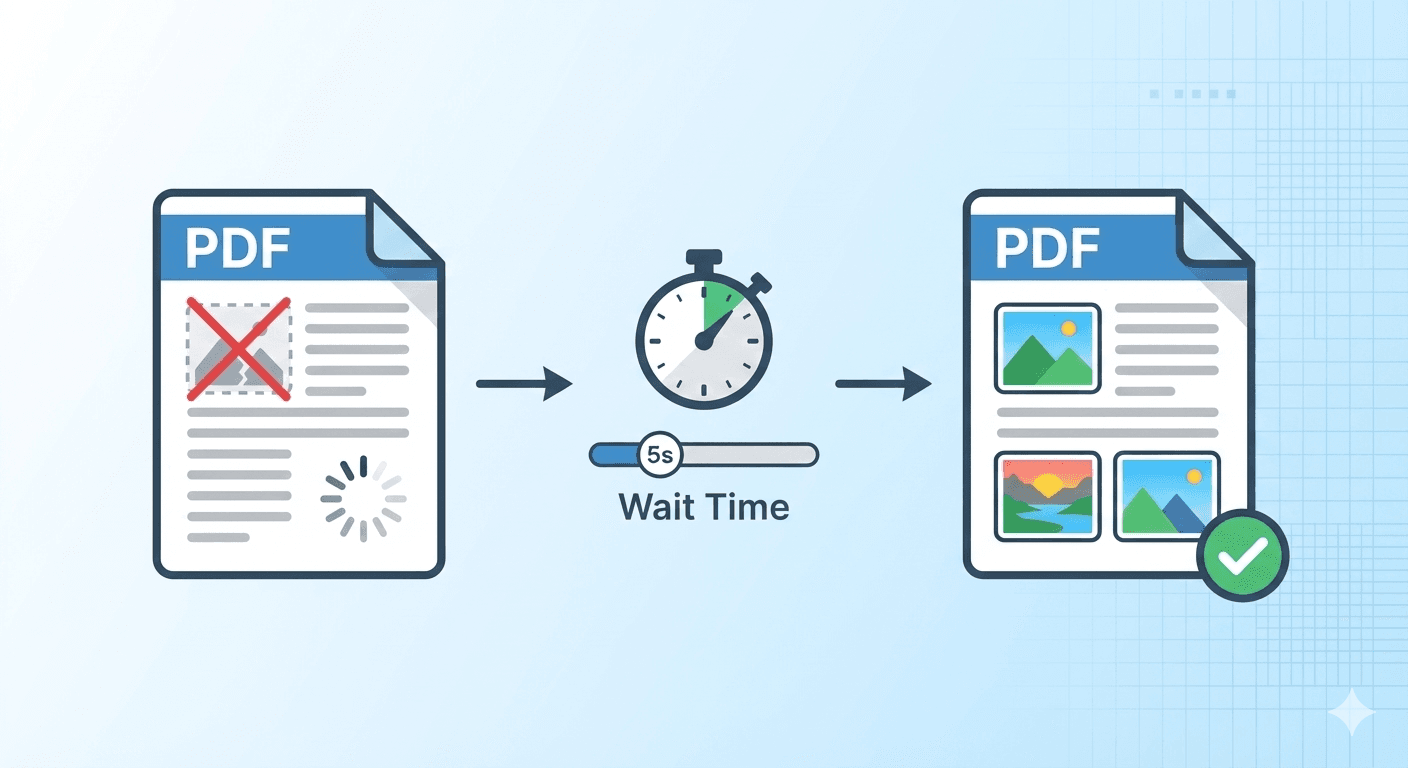
Problem 4: Images are Missing or Half-Loaded
The Symptom: The text is there, but where the images should be, there are just empty white boxes or spinning loading icons.
The Cause: Lazy Loading. Modern sites don't load images until you scroll down to them. If the converter is too fast, it takes the picture before the images arrive.
The Solution: Use the Conversion delay setting. By adding a 3-5 second delay, you force the converter to pause on the page, allowing the website's scripts to catch up and load all the photos before the PDF is generated. This is essential for news feeds and social media.
Deep Dive: Fix empty images and cut-off pages: My PDF is Missing Images! How to Fix Lazy Loading
Problem 5: I Need "Official" Archives (Date, URL, Page Numbers)
The Symptom: You have the content, but for legal or academic reasons, you need to prove when you saved it and where it came from.
The Solution: Use the Header & Footer HTML options. You don't need to be a coder; you can use our simple injection classes:
<span class='date'></span>adds the timestamp.<span class='url'></span>adds the source link.<span class='pageNumber'></span>adds pagination.
Pro Tip: Always set your Top and Bottom Margins to at least 0.4in so your headers don't overlap the text!
Deep Dive: Get copy-and-paste templates for professional headers: How to Add Page Numbers, Dates, and Titles to Your PDF
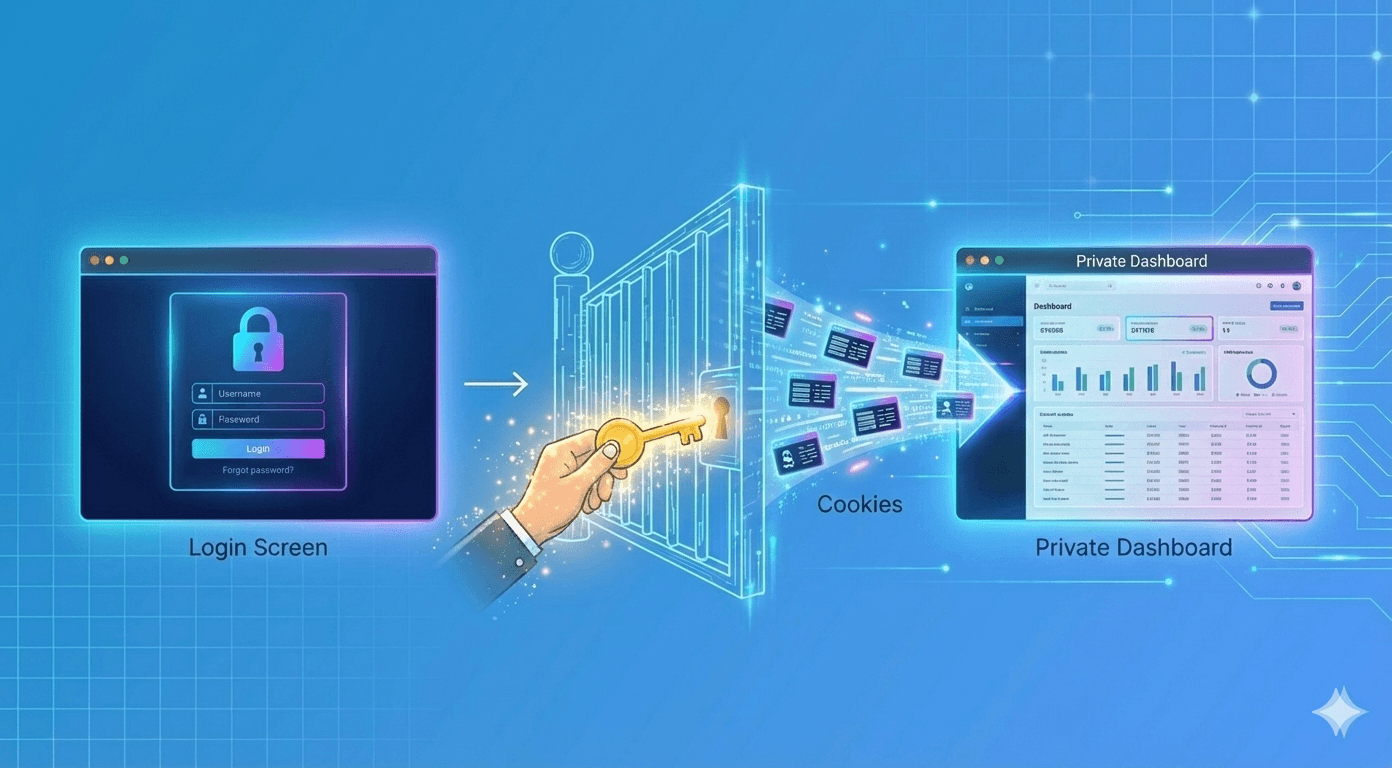
Problem 6: I Can't Convert a Private or Login-Locked Page
The Symptom: You try to convert a receipt or dashboard, but the PDF just shows the "Please Log In" screen.
The Cause: The converter is a "stranger" to the website. It doesn't know you are logged in.
The Solution:
Use the Initial Cookies feature.
By copying your session_id cookie from your browser and pasting it into our "Advanced Settings," you can lend your "Logged In" status to the converter. This allows it to bypass the login screen and capture your private data securely.
Deep Dive: A step-by-step tutorial on finding your cookies: How to Convert a Webpage That Requires a Login
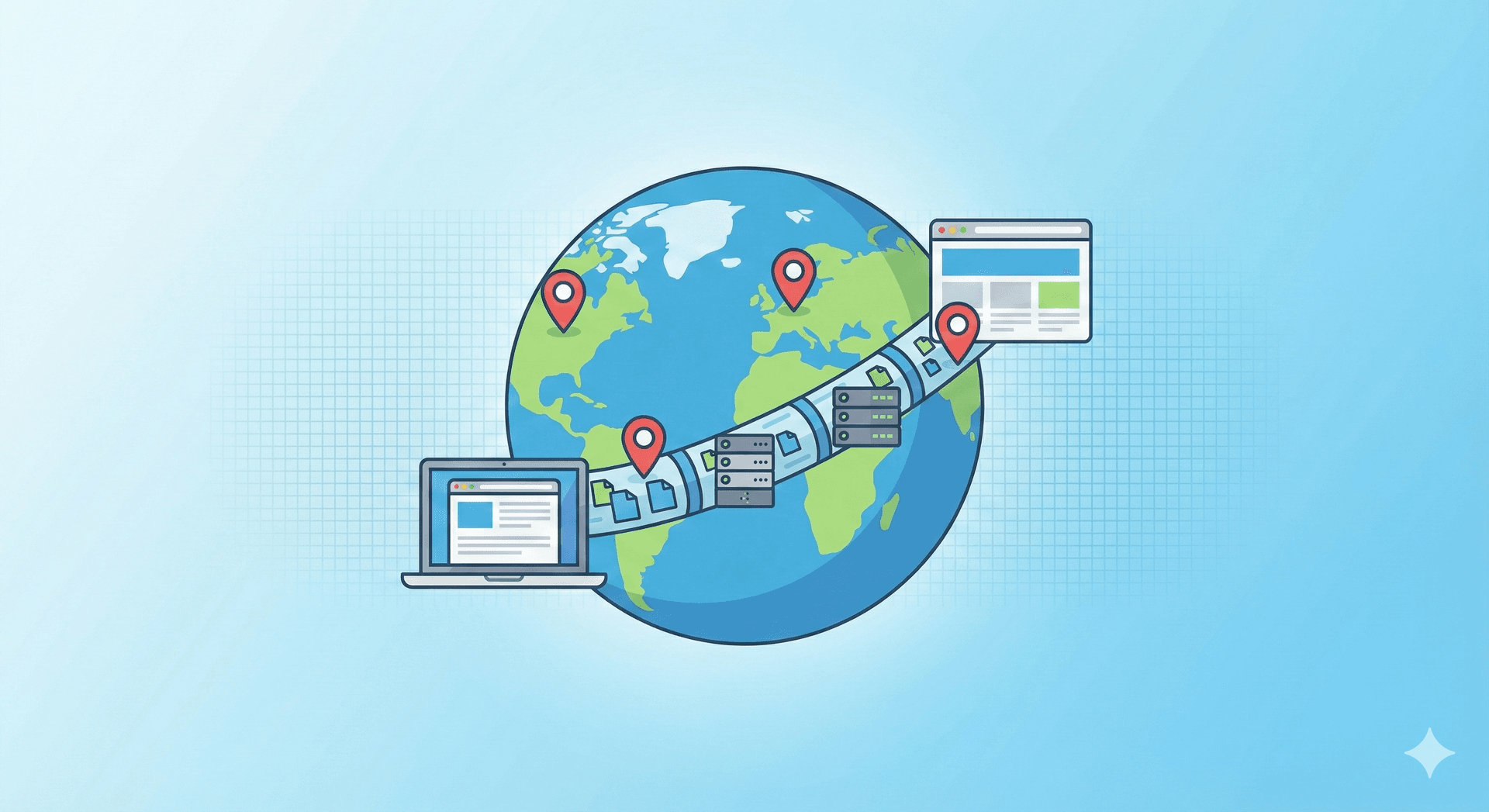
Problem 7: The Website is Blocked in My Country
The Symptom: The PDF shows "Content not available in your region" or shows the wrong currency/language.
The Solution: Use Geolocation and Proxies. Our tool allows you to spoof your location.
- Geolocation: Set the dropdown to "London, UK" or "Tokyo, Japan" to trick the site's GPS.
- Locale: Set the language code (e.g.,
fr-FR) to get the correct text. - Proxy: For strict blocks, enter an HTTP Proxy to route the traffic through a different country.
Deep Dive: Learn to travel the web virtually: How to Convert Webpages from Different Countries
Bonus: Is My Data Safe?
We know that if you are converting receipts or legal docs, privacy is paramount.
- No Storage: We delete your file immediately after download.
- No Snooping: We process files in isolated, secure containers.
- No Tracking: We don't add watermarks or tracking pixels to your documents.
Deep Dive: Read our full privacy promise: Is FreeWebToPDF Safe? How We Protect Your Data
Summary Checklist
Here is your quick reference for the perfect conversion settings:
| If you want to... | Change these settings... |
|---|---|
| Read an article cleanly | Check "Use Print Layout" + "Block Ads" |
| Save a receipt/invoice | Use "Initial Cookies" (if behind login) |
| Capture a visual design | Uncheck "Use Print Layout" + Check "Backgrounds" |
| Save a wide dashboard | Paper: "A3" + Orientation: "Landscape" |
| Save a social media thread | Viewport: "iPhone 15 Pro" + Wait Time: "5s" |
Ready to try it? Go to the Converter and build your perfect PDF now.