How to Convert a Webpage That Requires a Login
You paste the URL for your bank statement, your SaaS dashboard, or a paid course. You click "Convert."
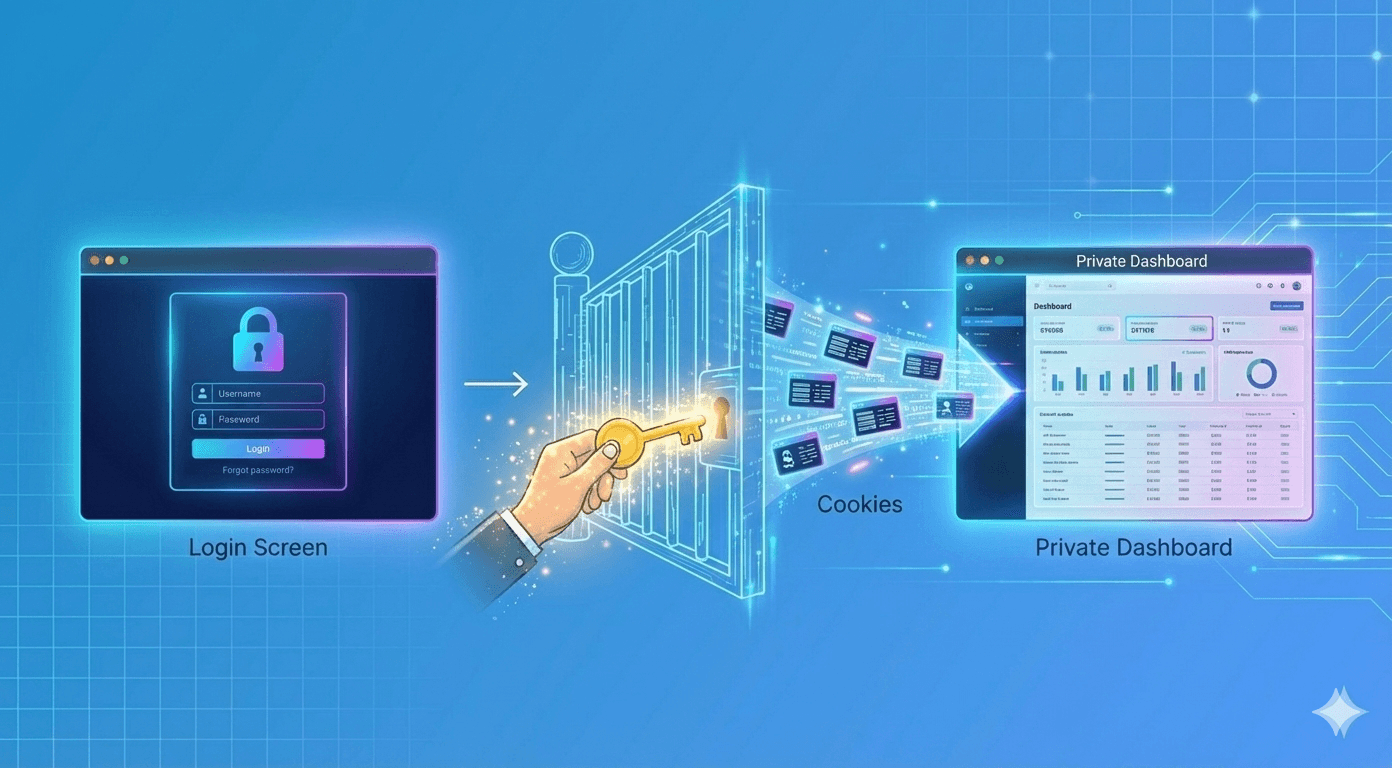
But when you open the PDF, you don't see your content. You just see the Login Screen.
Why does this happen? And more importantly, how do you fix it?
The solution is a powerful, advanced feature in our tool called Initial Cookies. Here is your step-by-step guide to using it.
Why the Converter Can't "See" Your Page
When you log into a website (like Facebook or your email), the website saves a tiny digital ID card on your browser. This is called a Session Cookie. It tells the website, "It's me! I'm already logged in."
However, our PDF converter is a different browser. It’s like a stranger trying to walk into your house. The website doesn't recognize it, so it stops the converter at the front door (the login screen).
To fix this, you need to lend your "ID card" (the cookie) to the converter.
How to Get Your Session Cookie (Chrome/Edge)
This sounds technical, but it only takes 30 seconds. You need to find the specific text that proves you are logged in.
- Log in to the website you want to capture on your own computer.
- Right-click anywhere on the page and select Inspect (or press
F12). - In the panel that opens, click the Application tab (you might need to click the
>>arrows to see it). - In the left sidebar, expand Cookies and click the website URL.
- Look for a cookie named
session_id,connect.sid,PHPSESSID, or similar. (It varies by site). - Copy the Name and the Value.
How to Use the "Initial Cookies" Feature
Now that you have the secret code, pass it to our tool.
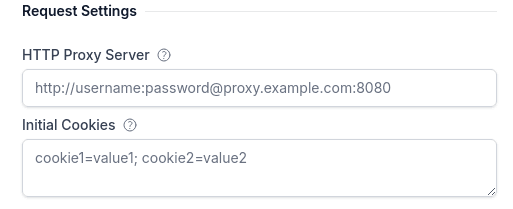
- Go to FreeWebToPDF.com and paste the URL of the private page.
- Click "Show Basic Options" then "Show Advanced Settings" and scroll down to Request Settings.
- Find the Initial Cookies text box.
- Paste your cookie in this format:
name=value.
Example:
If the cookie name is session_id and the value is xyz123, you would type:
session_id=xyz123
If you need multiple cookies, separate them with a semicolon:
session_id=xyz123; user_pref=darkmode
- Click Convert Now.
The Result
Our converter will send that cookie along with its request. The website will think, "Oh, it's you!" and let the converter straight through to the dashboard. Your PDF will capture the private content exactly as you see it.
Security Note: Cookies are sensitive data. They act as your password for that session. Never share your cookies with people you don't trust. Our tool processes everything securely, but be careful when sharing screenshots of your settings!
Summary
Don't let a login screen stop you from archiving your data. With the Initial Cookies feature, you can turn almost any private webpage into a permanent PDF record.
Want to master more advanced tools? Learn how to customize your layout, block ads, and add page numbers in The Ultimate Guide to Creating the Perfect Webpage PDF.